Contents
- The limits of the scheduled playbook approach
- Reverse engineering: what does the QRadar connector do differently?
- 1. Two lines in info.json
- 2. A time-filtered fetch operation
- 3. Tagged ingestion playbooks
- Data model: Alerts or a separate module?
- Why we did not push to the Indicators module
- The pitfalls we hit along the way
- Views and dashboard: with the Export/Import Wizard
- Conclusion
When you install a QRadar, FortiSIEM or EDR connector in FortiSOAR, you see a button called “Configure Data Ingestion” on the configuration screen. You click it; the wizard pulls sample data, asks you to map the fields to a module, asks for a schedule, and within minutes alerts start flowing into FortiSOAR.
On a connector you wrote yourself, that button is not there. Most teams then take the shortest route: they write a scheduled playbook that calls the connector’s “Get Incidents” action and process the returned records inside the playbook. This approach works, but it does not scale.
In this post I will explain how we moved a custom connector written for a threat intelligence platform to FortiSOAR’s standard Data Ingestion structure, how we used Fortinet’s own QRadar connector as a reference along the way, and the pitfalls we ran into.
The limits of the scheduled playbook approach
Our starting point was this: a scheduled playbook called the connector’s Get Incidents action at set intervals, processed the returned incident and updated its status in the source system.
In practice this setup had three core problems:
- There was no state management. The playbook did not keep track of “how far I read last time”. The query was configured to fetch a single record with the same filter on every run; when several incidents were created at once, the rest were left for later runs.
- Nothing was recorded. Because incidents were not stored in a FortiSOAR module, retrospective search, filtering, reporting and dashboards were not possible.
- Every change meant editing the playbook. Even a simple decision such as which incident types to pull required opening the playbook and changing a step.
Data Ingestion solves all three problems with the platform’s own mechanism: it stores the last pull time, writes records to a module with upsert, and makes the filters manageable through the wizard.
Reverse engineering: what does the QRadar connector do differently?
We opened the IBM QRadar connector package, one of Fortinet’s Data Ingestion-enabled connectors, and compared it with our connector. The difference comes down to three pieces.
1. Two lines in info.json
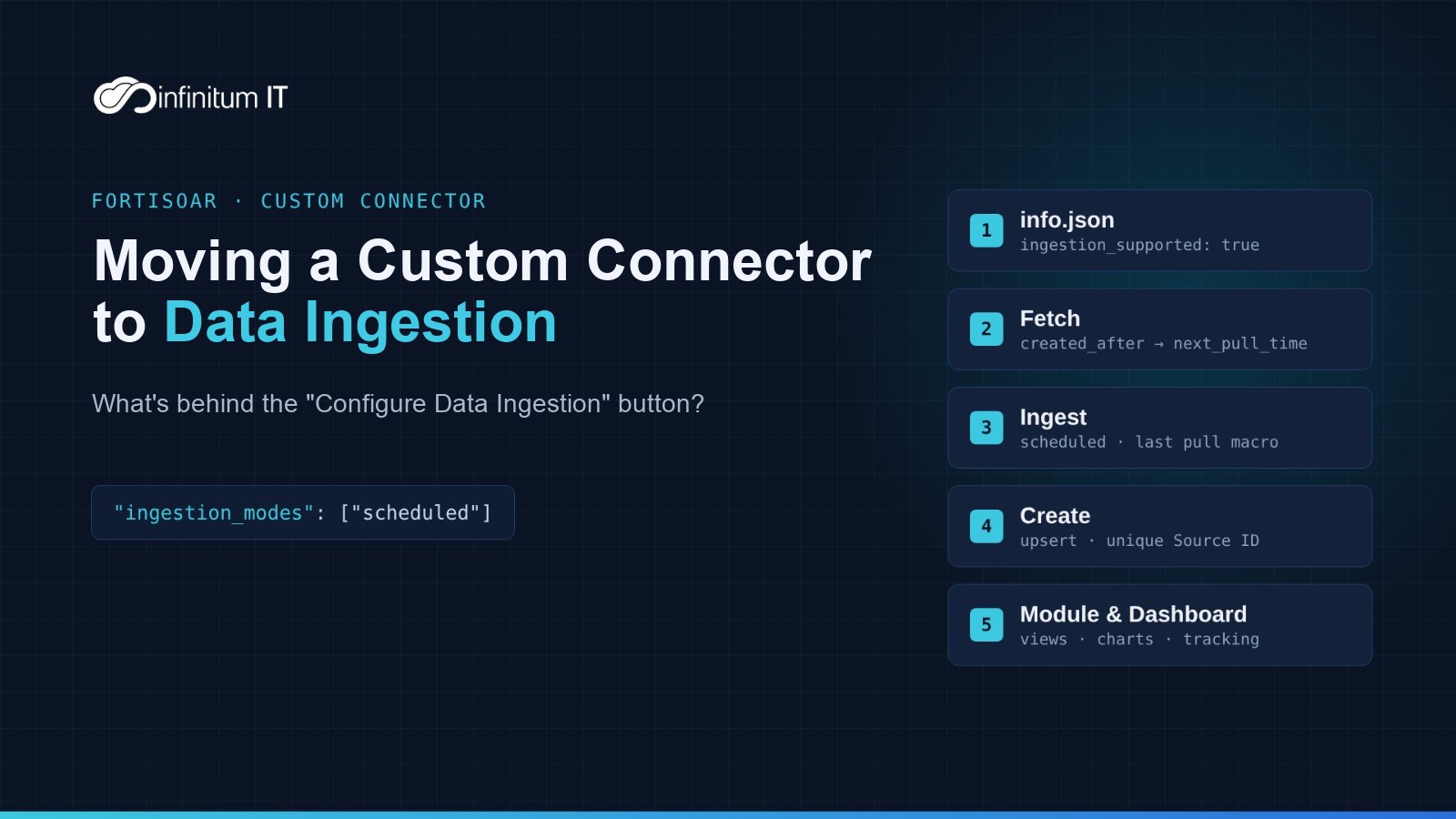
What makes the button visible are these two fields in the connector’s info.json file:
"ingestion_supported": true,
"ingestion_modes": ["scheduled"]
The moment you add these two lines, the button appears. On its own, however, that is not enough; when you click the button, the wizard starts looking for the playbooks it will run.
2. A time-filtered fetch operation
Alongside Get Offenses, the QRadar connector has a separate Fetch Offenses action. The difference is that it takes a “Created After” parameter and returns only records created or updated after that time.
We added a Fetch Incidents operation to our own connector. The points we paid attention to in the design:
- Use the most reliable sort order the API supports. The format of the source API’s date range filter was not clear in the documentation. So instead of depending on it, we read records sorted by creation time from newest to oldest and stopped paginating once we reached the last pull time.
- Apply filters in two layers. We sent single-value filters to the API. Multiple selections were filtered inside the connector, which kept us independent of the API’s multi-value support.
- Prevent record loss. If a single run exceeded the upper limit, we took the oldest records first and set the next pull time to the time of the last record taken. The rest arrive on the next run.
- Have the connector itself return the next pull time. The output has a
next_pull_timefield; the playbook does not bother calculating it, it just stores it.
3. Tagged ingestion playbooks
The real work is in the playbooks/playbooks.json file of the connector package. The QRadar package has playbooks specifically tagged for ingestion. We reduced the structure to three playbooks:
| Playbook | Tags | Role |
|---|---|---|
> Fetch |
#connector_name #dataingestion #fetch |
Reads the last pull time, calls the fetch action, returns the result |
Ingest |
#connector_name #dataingestion #ingest |
The scheduled main flow: Fetch → Create for each record → updates the last pull time |
> Create |
#connector_name #dataingestion #create |
Upserts a single record into the target module |
The wizard’s settings screen (which types to pull, how many days back to go on the first run, the maximum number of records to take at once, and so on) is built from the _configuration_schema variable in the Start step of the Fetch playbook. Every field you define here becomes a form element in the wizard, and the selected values are written under the same name to the Configuration step of the Fetch playbook.
The last pull time is kept in a global variable (macro). The macro name is derived from the playbook’s own IRI, so if the same connector has more than one configuration, each keeps its own timestamp.
Data model: Alerts or a separate module?
By default the wizard suggests writing the data to the Alerts module. In our scenario this was not right. The incoming records were leak intelligence and needed to stay out of the SOC’s alert queue.
So we created a separate module in the Module Editor. Points to watch:
- The module name cannot be changed later. The singular and plural names also determine the type value used in the API. You need to get it right the first time.
- Record Uniqueness must be defined. We made the incident code from the source system the unique field. Because the Create playbook works with upsert, when the same record arrives again no new record is opened; the existing record is updated.
- Map picklist fields yourself. We used the system’s built-in picklists for Status and Severity, and linked the source system’s values to them from the wizard’s mapping screen.
Why we did not push to the Indicators module
The “Indicators” tab in the Alerts module looks tempting: if you push the URL and user values in a record to the Indicators module, correlation works automatically. However, many deployments have playbooks that automatically enrich every new record in the Indicators module with external services.
Leak records contain internal login page addresses and user information. Because we did not want these values sent to external services, we kept this information in the module’s own fields instead of building relationships. Whether the same user appears in other records can be checked with a simple search on the relevant field.
For the same reason, the connector masks fields containing passwords, tokens, cookies and secrets before writing them to FortiSOAR.
The pitfalls we hit along the way
This section is perhaps the most useful part of the post. These are the points we could not find in the documentation and learned by trial:
1. The playbook tag must exactly match the connector name. On first launch the wizard returned the error “No compatible data ingestion playbooks found in this collection. Ensure the playbooks have the #connector_name tag added”. We had tagged the playbooks with the product name, whereas the wizard looks for a tag identical to the name field in info.json.
2. Enter a field path, not an expression, in picklist fields. The mapping expression we wrote into the Status field with {% if ... %} produced an “Invalid Jinja syntax” error during ingestion. The reason is that the wizard itself wraps the value entered in picklist fields in the pattern {{ <value> | resolveRange(map) }}. The right way is to enter only the source field’s path and do the mapping in the table opened by the arrow next to it. To map more than one source value to a single FortiSOAR value, separate them with commas; for example, CLOSED,RISK_ACCEPTED,REJECTED on the Closed row.
3. Comma-separated numeric text can turn into an array. When we joined multiple user names with commas and wrote them to a text field, the field value appeared as “Array” in some records. FortiSOAR evaluates the value produced in the playbook like a Python expression; a text made only of digits, such as 11111, 22222, turns into a tuple. Changing the separator to ; solved the problem, because that text cannot be evaluated as a Python expression and stays as text.
4. Re-uploading with the same version number is not reliable. When we changed the connector code and uploaded it with the same version number, the new code did not take effect. Bumping the version solved the problem. Incrementing the version on every change is the cleanest approach.
5. The wizard creates its own copies of the playbooks. The wizard does not use the sample playbooks in the connector package directly; it creates a separate collection whose name contains “defaultIngestion”. Updating the playbook in the package does not change the existing setup. Mapping changes should be made through the wizard. When changing versions, make sure the old collection and its schedule are cleaned up, otherwise two ingestions may run at the same time.
6. Date-only fields can shift with the time zone. The source system sent the leak date without a time. FortiSOAR stored this value as UTC midnight and converted it to local time (+3), so it appeared as 03:00 in the interface. The data is correct, but it is worth choosing the field type accordingly.
Views and dashboard: with the Export/Import Wizard
When a module is created, the default detail page is a single form that lists the fields one under another in the order they were added. To change it, instead of using the template editor we took a different route:
- With the Export Wizard we exported the new module’s view templates and, as an example, an existing dashboard. We also took the Alerts module’s detail view as a style reference.
- We studied the widget structure (editableFormGroup, tabs, chart, cardList, performanceMetrics) in the exported JSON files and built the detail view, the list view and a separate dashboard for the new module in the same format.
- We loaded the package back with the Import Wizard. We did not include the module schema in the package, so the import affected only the views and the dashboard.
A small note that cost us time: the “Import Template” button on the Export Wizard screen does not load content; it only imports export templates. To load content, use the Import Wizard, which is a separate menu.
Conclusion
Data Ingestion is the way the platform intends you to bring data into FortiSOAR from external sources. Because it comes ready-made in Fortinet’s own connectors, few people wonder what is behind it. Yet setting up this structure in a custom connector is not that complicated: two lines in info.json, a well-designed fetch operation and three correctly tagged playbooks are enough.
Once you move to this structure, the integration stops being a playbook that needs maintenance; it becomes a data source with records, filters and a dashboard, working on the same logic as the rest of the platform.
Enes ÇALBAN